Access via VS Code
This guide explains how to connect VS Code directly to a DCC compute node using the Remote - SSH extension. The connection automatically requests a CPU or GPU allocation through Slurm, so you do not need to run salloc or srun manually or keep a terminal session open. This is the recommended method to use VS Code on DCC, since the login nodes are not intended for computationally heavy workloads. This method uses a session heartbeat monitor to automatically terminate the Slurm job after a period of inactivity or when VS Code is exited, so you do not need to manually cancel the job.
Prerequisites
- A DCC account with SSH key access already configured. See SSH Keys Guide if you haven't set this up yet.
- VS Code installed locally.
- The Remote - SSH extension installed in VS Code.
Step 1: Add SSH Config Entries
Add one Host block per profile required to your local machine's ~/.ssh/config. Replace DUKE_NETID with your Duke NetID.
Host dcc-cpu
    User DUKE_NETID
    ProxyCommand ssh -o ConnectTimeout=300 DUKE_NETID@dcc-login.oit.duke.edu 'bash /usr/local/bin/dcc-ssh-proxy.sh --name cpu --partition scavenger,common'
    ConnectTimeout 300
    StrictHostKeyChecking no
    UserKnownHostsFile /dev/null
    LogLevel ERROR
    ServerAliveInterval 30

Host dcc-gpu
    User DUKE_NETID
    ProxyCommand ssh -o ConnectTimeout=300 DUKE_NETID@dcc-login.oit.duke.edu 'bash /usr/local/bin/dcc-ssh-proxy.sh --name gpu --partition scavenger-gpu,gpu-common --gres gpu:1'
    ConnectTimeout 300
    StrictHostKeyChecking no
    UserKnownHostsFile /dev/null
    LogLevel ERROR
    ServerAliveInterval 30
If you have access to the H200 partition, you can additionally include an H200 profile.
Host dcc-h200
    User DUKE_NETID
    ProxyCommand ssh -o ConnectTimeout=300 DUKE_NETID@dcc-login.oit.duke.edu 'bash /usr/local/bin/dcc-ssh-proxy.sh --name h200 --partition scavenger-h200 --account scavenger-h200 --gres gpu:h200:1 --mem 128G'
    ConnectTimeout 300
    StrictHostKeyChecking no
    UserKnownHostsFile /dev/null
    LogLevel ERROR
    ServerAliveInterval 30
Step 2: Configure VS Code's Connection Timeout
Submitting and waiting for a new Slurm job can take longer than VS Code's default 15-second SSH connect timeout.
In VS Code, run Cmd+Shift+P -> Preferences: Open User Settings (JSON) -> add the following to settings.json,
This matches the ConnectTimeout 300 used above and gives the proxy script enough time to wait for a job to start before VS Code gives up.
Step 3: Connect
- Open VS Code and open the Command Palette (
Cmd/Ctrl+Shift+P). - Run Remote-SSH: Connect to Host...
- Select
dcc-cpu,dcc-gpu, ordcc-h200from the list.
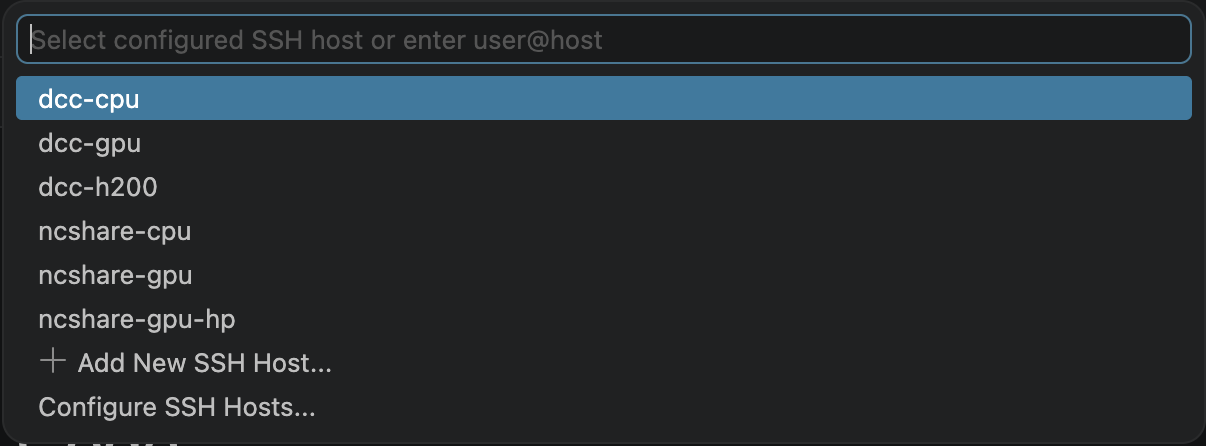
- VS Code opens a new window and connects. The first connection for a profile submits a Slurm job and may take several seconds, depending on resource availability. Later connections reuse the running job and connect immediately.
Customizing your Session
Set these options as flags in the ProxyCommand in ~/.ssh/config.
| Flag | Default | Meaning |
|---|---|---|
--partition |
scavenger,common |
Slurm partition(s) to submit to (comma-separated list) |
--account |
(none) | Slurm account, if required by your partition |
--qos |
(none) | Slurm QoS, if required |
--gres |
none |
GPU request, e.g. gpu:1, gpu:h200:1; none = CPU-only |
--cpus |
4 |
CPUs to allocate |
--mem |
16G |
Memory to allocate |
--time |
8:00:00 |
Hard wall-time cap on the job |
--idle-min |
15 |
Minutes of no connection before idle cleanup (0 disables idle cleanup) |
--wait |
240 |
Seconds to wait for a new job to start |
--name |
vscode |
Profile name; each name gets its own job |
--log |
/dev/null |
Where to send Slurm job stdout/stderr (set a path to debug) |
For example, add --mem 128G to a GPU profile's ProxyCommand to request 128 GB of memory.
--idle-min 0 disables auto-cleanup
Setting --idle-min 0 prevents the watchdog from ending an idle job. The allocation remains active until you cancel it or it reaches the --time wall-time limit (8 hours by default).
Ending a Session
Closing the VS Code window or disconnecting stops the heartbeat. As long as --idle-min is not 0, the watchdog running inside the job notices the heartbeat has gone stale and ends the job after that many idle minutes (15 minutes by default). Manual cancellation with scancel is not required.
To end a session immediately instead of waiting for the idle timeout, or if you set --idle-min 0, SSH to DCC and cancel the job,
How it Works
A conventional VS Code Remote - SSH configuration connects to a DCC login node. Login nodes are intended for file management, job submission, and other lightweight tasks; computational workloads should run on compute nodes.
The required scripts, dcc-ssh-proxy.sh and dcc-session-watchdog.sh, are installed centrally in /usr/local/bin.
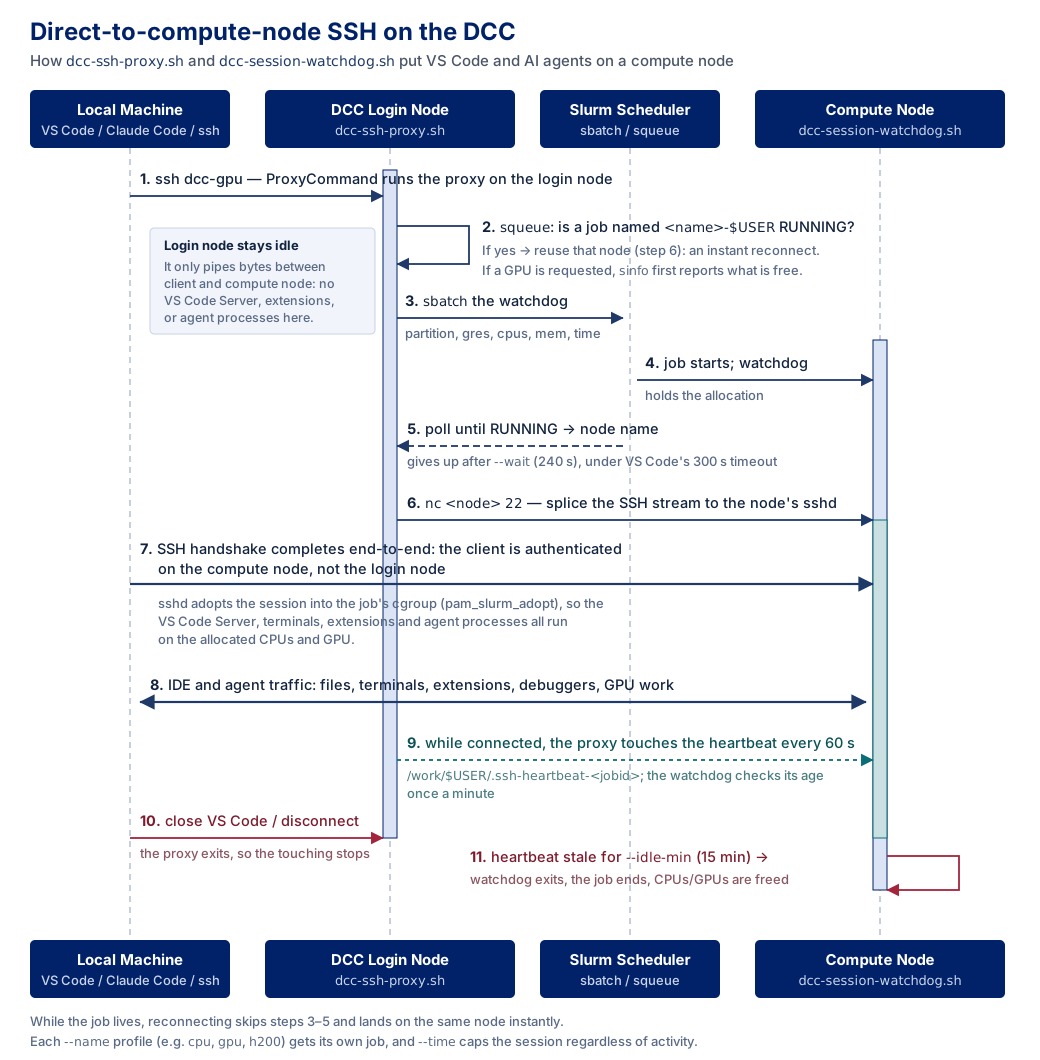
In this configuration, an SSH ProxyCommand runs dcc-ssh-proxy.sh on a login node whenever you connect to an alias such as dcc-cpu. The script:
- Reuses a running Slurm job associated with the requested profile, such as
cpuorgpu. - Submits a new job if no matching job is running, then waits for its allocation.
- Proxies the SSH connection to port 22 on the allocated compute node.
The Slurm job runs dcc-session-watchdog.sh. While an SSH connection is active, the proxy script updates a heartbeat file. After all connections close and the heartbeat becomes stale, the watchdog ends the job after the configured idle period, releasing its resources. Setting --idle-min 0 disables idle-based cleanup, and the job continues until manually cancelled or its configured wall-time limit is reached.
Multiple profiles
Each SSH host, such as dcc-cpu or dcc-gpu, can use a distinct --name. This allows separate CPU and GPU sessions to run simultaneously without reusing each other's allocations.
The diagram below traces a single connection, from the ProxyCommand on the login node through to the VS Code Server running inside the Slurm job.
Troubleshooting
VS Code prompts for a password instead of connecting
Check that your ProxyCommand explicitly includes DUKE_NETID@dcc-login.oit.duke.edu. Without it, the inner SSH connection uses your local machine's username instead of your Duke NetID. Also ensure you have configured SSH keys for passwordless login to DCC.
Connection hangs, then times out around 15 seconds
Make sure "remote.SSH.connectTimeout": 300 is set in VS Code's settings.json, and that ConnectTimeout 300 is set in the matching Host block.
Log shows a GPU warning and the job is queued for a long time
The proxy script checks GPU availability with sinfo before submitting and logs a warning in VS Code's Remote-SSH output if none are currently free, along with the available GPU types. Try a different --gres type or wait for resources. See the GPU Jobs for more on GPU availability.
I want to see diagnostic information from job startup
Set --log to a file instead of the default /dev/null, e.g. --log "/work/DUKE_NETID/vscode-debug-%j.out", then check the file after connecting.
Acknowledgements
This guide was adapted from PSC's Launching Remote IDEs on Bridges-2 Compute Nodes documentation and was enhanced with the help of Joe Shamblin at Duke University.